Publish and notification email
What the publish review checks, how the notification email works per language, and what LPs receive.
Publishing makes a report set visible to its recipients in the LP portal. Because it is LP-facing, it always goes through a review: you confirm who receives the set and decide whether to notify them by email. Nothing is sent until you confirm.
Open the publish review
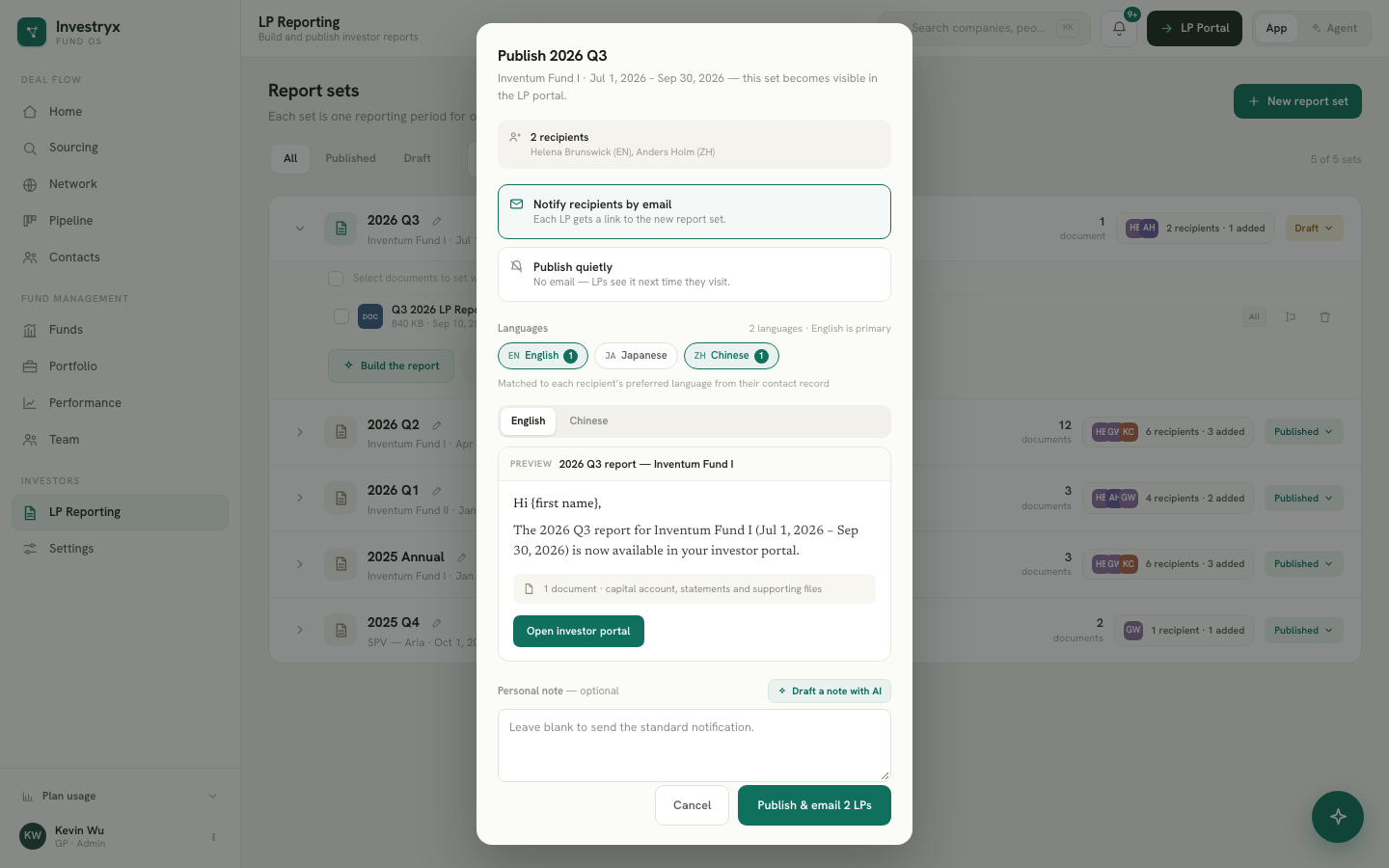
On LP Reporting, click the status pill on the set’s row and choose Published. The review is titled “Publish
Step 1 — check the recipients
The top of the review shows the recipient count and the first names with their language code (EN, JA, ZH). If it reads No recipients — nobody will be emailed, close the review and add the fund’s LP contacts first. See Recipients.
Step 2 — choose how to publish
- Notify recipients by email — each LP contact gets an email with a link to the new report set in the portal.
- Publish quietly — no email; LPs see the set the next time they visit.
Step 3 — languages
With notification on, the Languages row shows English, Japanese and Chinese as chips, with a count of recipients on each. The languages present among your recipients are pre-selected; the first is the primary. Each recipient receives the version matching the Language on their contact record. If a recipient’s language is not selected, they receive the primary one, and the review says so.
When more than one language is selected, a tab per language appears above the preview. Click through them to read each version. The preview shows the subject line, greeting, body, the number of documents in the set and the button that opens the portal.
Step 4 — the personal note (optional)
Below the preview is a Personal note field. Leave it blank to send the standard notification, type your own, or click Draft a note with AI. The AI writes two sentences from the fund’s figures for the period; a line under the field reminds you it is an AI draft to review before sending. Edit it freely, or click Redraft with AI. The note is included in every language version.
Step 5 — publish
Click Publish & email N LPs (or Publish when publishing quietly). The set’s status becomes Published, the recipients can open it in the portal, and the activity feed records “published
After publishing
- Views and downloads start accumulating in the access log. See Access log and reminders.
- Three days after publishing, if some recipients still have not opened the set, a notification tells you how many. See Notifications.
- Changing the status back to Draft hides the set from every recipient. The confirmation states how many people lose access.