Report sets
Create a per-fund report set, build the report or upload documents, and move it between Draft and Published.
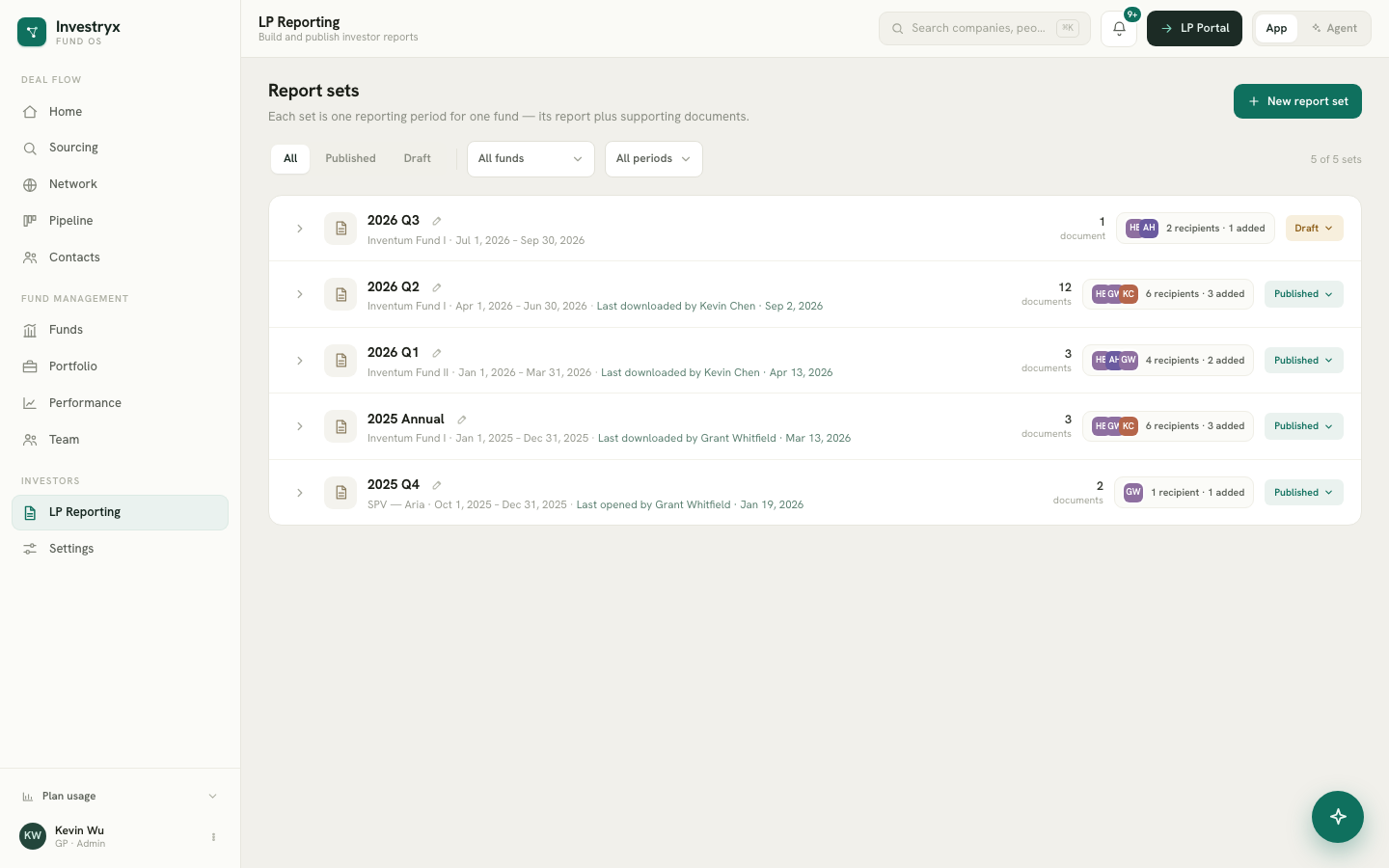
A report set is a folder of documents for one fund and one reporting period: the built LP report plus any supporting files. LP Reporting lists your sets as expandable rows; each has a status, a recipient list and per-document visibility.
Create a set
- Open LP Reporting and click New report set.
- Enter a Set name (for example “2026 Q4”), choose the Fund, and set the Reporting period start and end dates.
- Choose Visibility: Draft — only your team can see it or Published — visible to recipients in the LP portal. Start in Draft unless the documents are already final.
- Review Recipients. The fund’s LP contacts are listed automatically; remove anyone who should not receive this set. You can add extra people later.
- Click Create report set.
Every set opens collapsed. Click the row to expand it and see its documents.
Add documents
An expanded set offers two actions:
- Build the report opens the report builder. It assembles the LP report from the fund’s data in sections you can toggle and reorder: Cover, Manager letter, Fund performance, Portfolio highlights, Capital accounts, Disclosures, plus custom sections you add. Draft with AI writes the manager letter from the fund’s figures; it is marked as an AI draft to review before publishing, and you can edit or rewrite it. Save to report set stores the report as the set’s built document. Each set holds one built report; edit it with the pencil, or delete it to rebuild.
- Upload documents accepts PDF, DOCX or XLSX files up to 25 MB each. By default the file names become document names; turn that off to name each one.
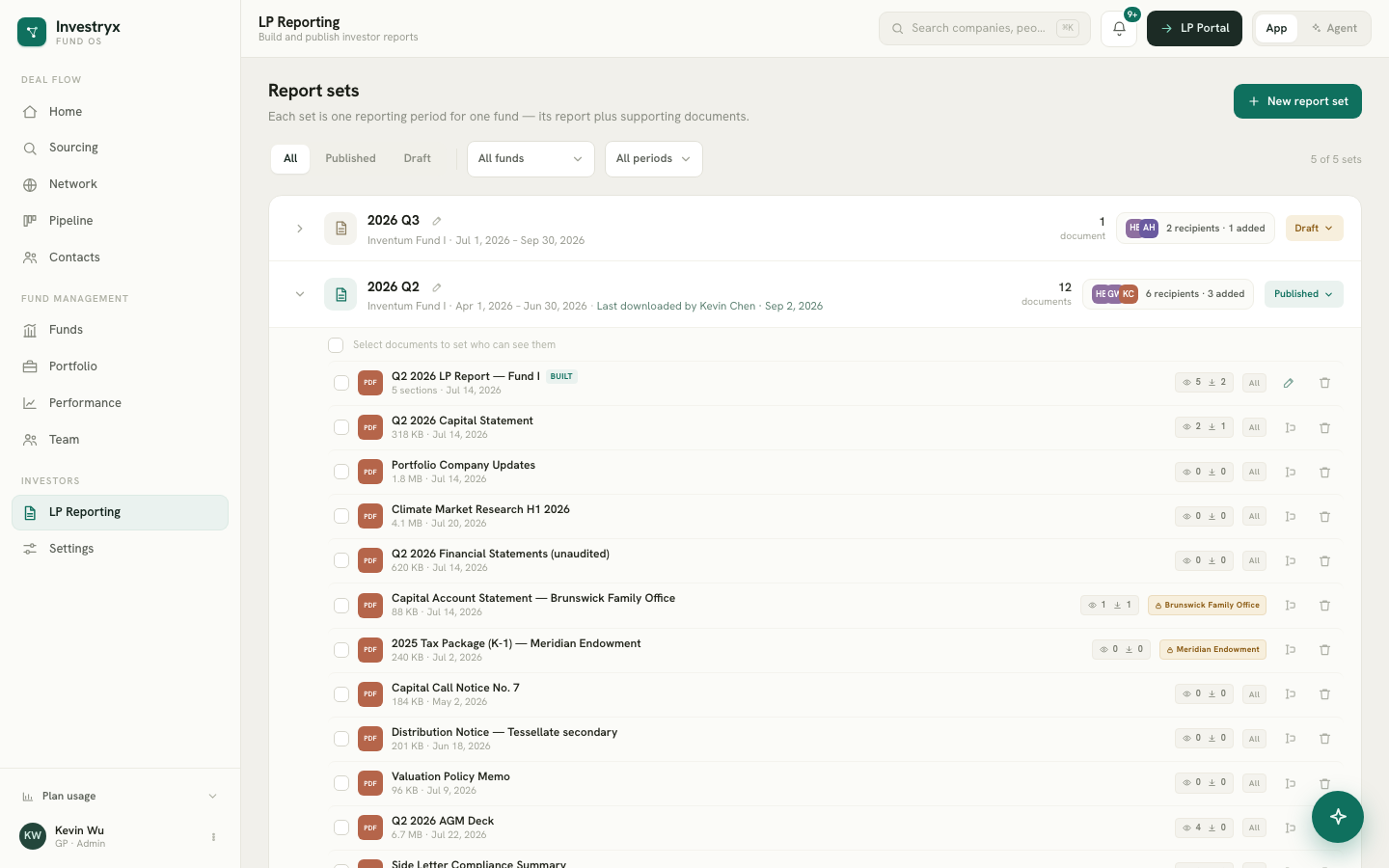
Each document row shows its type, size, audience and, once the set is published or someone has opened it, view and download counts. Icons on the row rename or delete the document. Deleting a document from a published set removes it from the portal immediately.
Status: Draft and Published
The status pill on the row is a dropdown with two options:
- Draft — hidden from LPs; only your team sees it.
- Published — visible to recipients in the LP portal.
Changing Draft to Published opens the publish review, where you confirm the recipient list and decide whether to email them. See Publish and notification email.
Changing Published to Draft opens a confirmation that states how many LP recipients lose access and how many documents are hidden. Nothing is deleted; publish again at any time and recipients regain access.
Other actions on a set
- Rename report set (pencil next to the name). LPs see this name as the reporting-period folder in their portal.
- Manage recipients opens the Recipients dialog. See Recipients.
- Select one or more documents with the checkboxes, then Set visibility to restrict who can see them. See Document audiences.
- Click a document’s count chip to open its access log. See Access log and reminders.
Filter the list by fund, period or status with the controls above it.